
10 KiB
Day 3
"For"
Let's cover our first loop - the "for" loop. In Python the "for" loop is absurdly powerful. Let me show you why.
Looping without code
"For" loops in Python make intuitive sense even without code. I can demonstrate with this basket of fruit:
|         |
|  apple  |
|  banana |
 \ pear  /
  \_____/
For each fruit I want you to take it out of the basket say its name. You start with the apple, since it's at the top, and say "apple". Then you'd take out the banana and say "banana". Finally you'd take our the pear and say "pear".
In Python our "basket" is a list. Lists look like this:
["apple", "banana", "pear"]
They're very similar to tuples. A list is "ordered", the first item in the list will always be the apple - much like the top item in the basket will always be the apple.
If I asked you to repeat the basket exercise above but with our python list - remove each item and say its name - you'd start with the apple, then remove the banana, and finally remove the pear.
Looping with code
You saying the names of fruit out loud is funny but not very practical. Instead I want you to print the names of the fruit from our basket in the Python interpretor.
-
Start you interpretor by typing
pythonand pressing ++enter++ -
In your interpretor type the following:
fruits = ["apple", "banana", "pear"]
for fruit in fruits:
    print(fruit)
You should see the fruit print out:
>>> fruits = ["apple", "banana", "pear"]
>>> for fruit in fruits:
...     print(fruit)
...
apple
banana
pear
>>>
you've just used a for loop!
-
So we can do something with each item in a list. But what if we need the index of each item? Type the following:
fruits = ["apple", "banana", "pear"]
for index, fruit in enumerate(fruits):
    print(f"fruit {fruit} is at index {index}")
with
enumeratewe can capture the position of the item and the item itself in the list.Why is this useful?
-
We can modify elements in a list if we have their position. Paste the following and press enter:
fruits = ["apple", "banana", "pear"]
print(f"Our original list is: {fruits}")
Now let's modify our list. Type the following and press enter:
for index, fruit in enumerate(fruits):
    print(f"fruit {fruit} is at index {index}")
    if fruits[index] == "apple":
        fruits[index] = "apricot"
    print(f"fruit is still {fruit} but {fruits[index]} is at position {index} now")
Now paste this:
print(f"Our modified list is: {fruits}") -
We can also loop through the contents of a dictionary. Let's recreate our dictionary from before:
vocabulary = {"apple": "the usually round, red or yellow, edible fruit of a small tree, Malus sylvestris, of the rose family.", "banana": "a tropical plant of the genus Musa, certain species of which are cultivated for their nutritious fruit."}Now we'll loop through the keys in the dictionary:
for word in vocabulary:
    print(word)
We can access any item in the dictionary with its key:
for word in vocabulary:
    print(vocabulary[word])
And we can access both the key and value by using the
items()function:for word, definition in vocabulary.items(): print(f"{word}: {definition}") -
One common data format you'll run into is a list of dictionaries. You can think of this like spreadsheet columns:
first name last name age Jim Fowler 24 Bob Jones 36 Alice Appleseed 52 Behind the scenes this table data might look like:
[
    {"first name" : "Jim", "last name": "Fowler", "age": 24},
    {"first name" : "Bob", "last name": "Jones", "age": 36},
    {"first name" : "Alice", "last name": "Appleseed", "age": 52}
]
Notice how the headers are copied each time - this is the only way to ensure headers are preserved when translated to this format. This is called "json" and is the current preferred way to send data over the web.
Let's create this data in Python
people = [
    {"first name" : "Jim", "last name": "Fowler", "age": 24},
    {"first name" : "Bob", "last name": "Jones", "age": 36},
    {"first name" : "Alice", "last name": "Appleseed", "age": 52}
]
We're building a program that checks each person and lets you know if they're over 30 years old. This is easy with for loops:
for person in people: if person["age"] > 30: print(f"{person['first name']} {person['last name']} is over 30.") -
Another common data format is a dictionary of lists. You can think of this like acceptible responses on a web form:
The form below has 3 valid states and 4 valid emotions:
Choose a state: Ohio Virginia Alask
How you are feeling today: Happy Sad Excited Nope
These could be represented by the following data:
{
    "states": ["Ohio", "Virginia", "Alaska"],
    "emotions": ["Happy", "Sad", "Excited", "Nope"]
}
Let's add this data to python:
choices = {
    "states": ["Ohio", "Virginia", "Alaska"],
    "emotions": ["Happy", "Sad", "Excited", "Nope"]
}
Now imagine you have to check if someone entered the right answer when filling out the form. Type the following:
state = input("Type the state you live in: ")emotion = input("How are you feeling: ")if state in choices["states"]: print("Good state") else: print("I don't know where that is.")if emotion in choices["emotions"]: print("Same") else: print("Not a valid emotion") -
Exit your terminal with
exit()
Creating an API
You've got enough at this point to make a substantial API. Usually we'd write a python script at this point but we're going to build a Django API first this time. We'll use the people data we have above.
-
Open mysite/views.py
-
At the top of views.py add the following:
import random from django.shortcuts import render from django.http import JsonResponse -
At the very bottom (below your weather function) add another function like so:
def api(request):
people = [
    {"first name" : "Jim", "last name": "Fowler", "age": 24},
    {"first name" : "Bob", "last name": "Jones", "age": 36},
    {"first name" : "Alice", "last name": "Appleseed", "age": 52}
]

return JsonResponse({"data": people})
We're returning a "JsonResponse" this time. Remember how json is the current preferred way to send data over the web? Django has a formatter built in for it.
-
let's add a url that points to our api endpoint. Open mysite/urls.py.
-
Add the following:
urlpatterns = [ path('', views.index), path('weather/', views.weather), path('people/', views.api), ] -
Start your server with
python manage.py runserver -
Navigate to http://localhost:8000/people
-
You should see people data!
-
Stop your server with ++ctrl+c++
Reading an API with python
You have an API! Now let's read it with python. This is one of the most common applications for python in a work environment.
-
First we need a pip package called
requests.requestscan make web requests on our behalf. Install it by typing the following in your terminal:pip install requests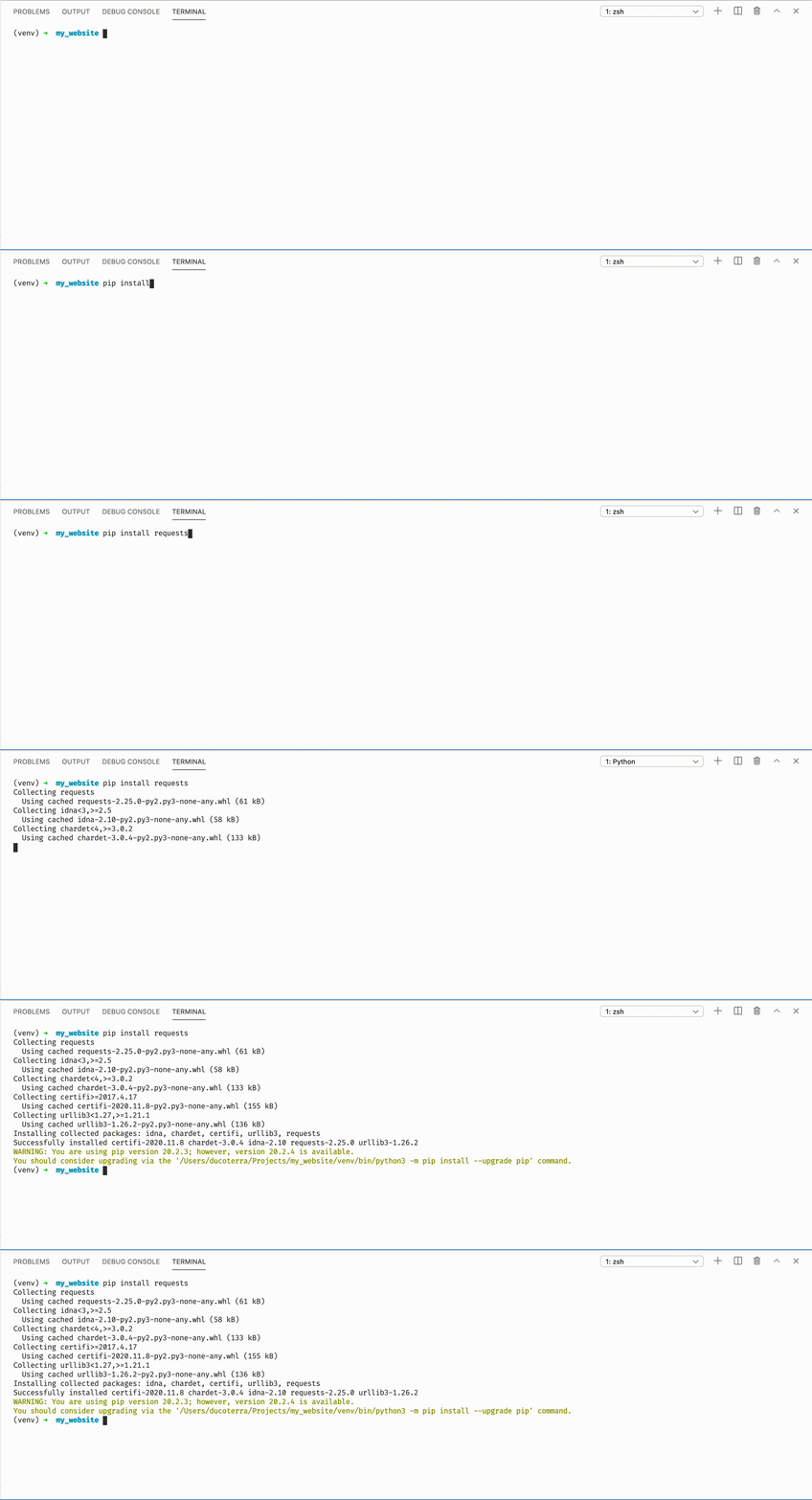
-
Let's make sure that install worked. Open the python prompt by typing
python -
In your interpretor type:
import requests
requests.get("https://google.com")
You should see a
<Response [200]>. That means everything worked! -
Type
exit()to exit. -
Create a new file called
api.pyin your my_website folder: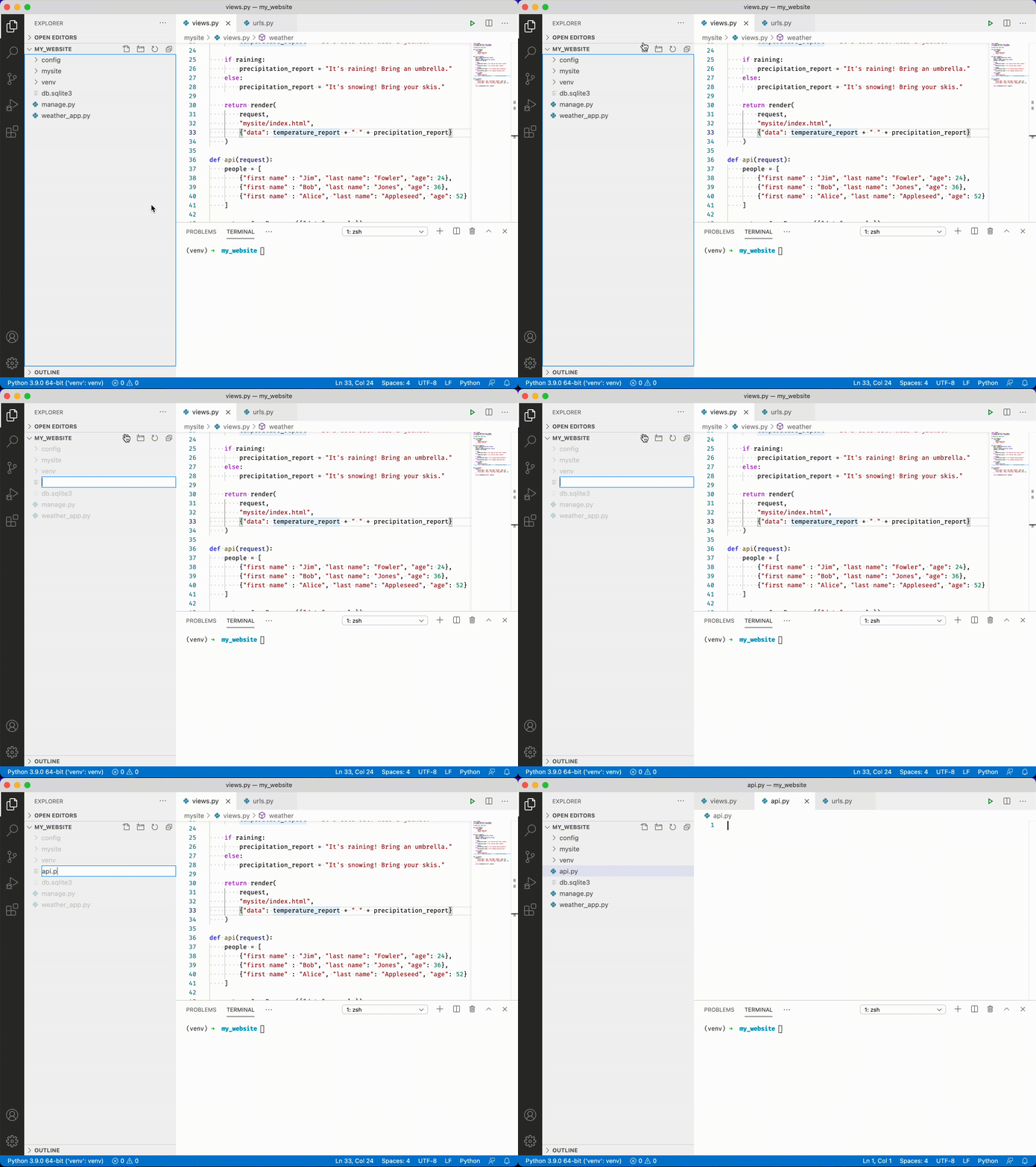
-
Add the following to
api.pyimport requests response = requests.get("http://localhost:8000") print(response.text) -
Save with ++ctrl+s++
-
Run your server by typing
python manage.py runserver -
Open a new terminal window by click the plus icon:
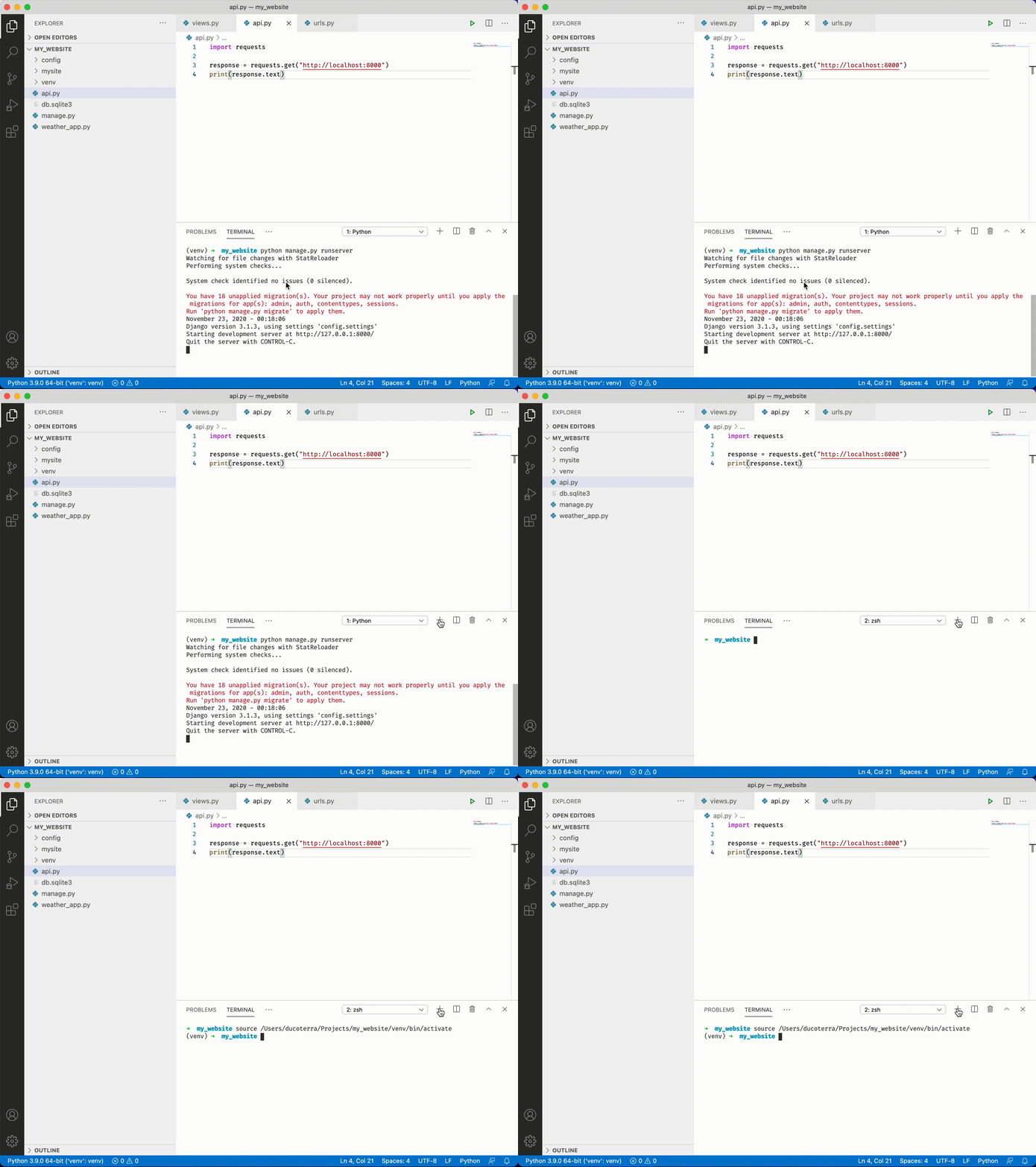
-
Type
python api.pyand press ++enter++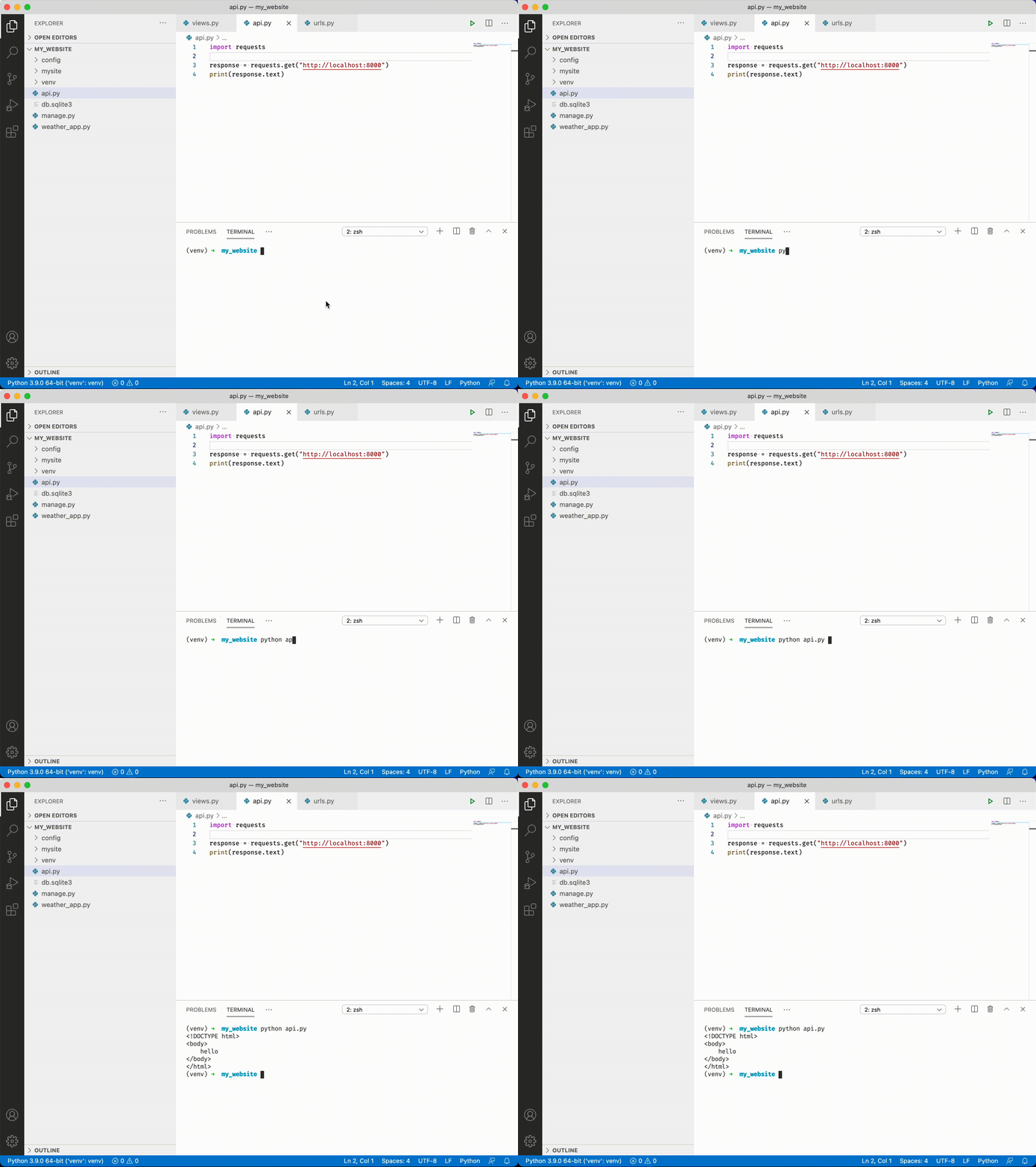
We got our index page! Now let's get our API call:
-
Modify api.py by changing our web call to http://localhost:8000/people
import requests response = requests.get("http://localhost:8000/people") print(response.text) -
Type
python api.pyand press ++enter++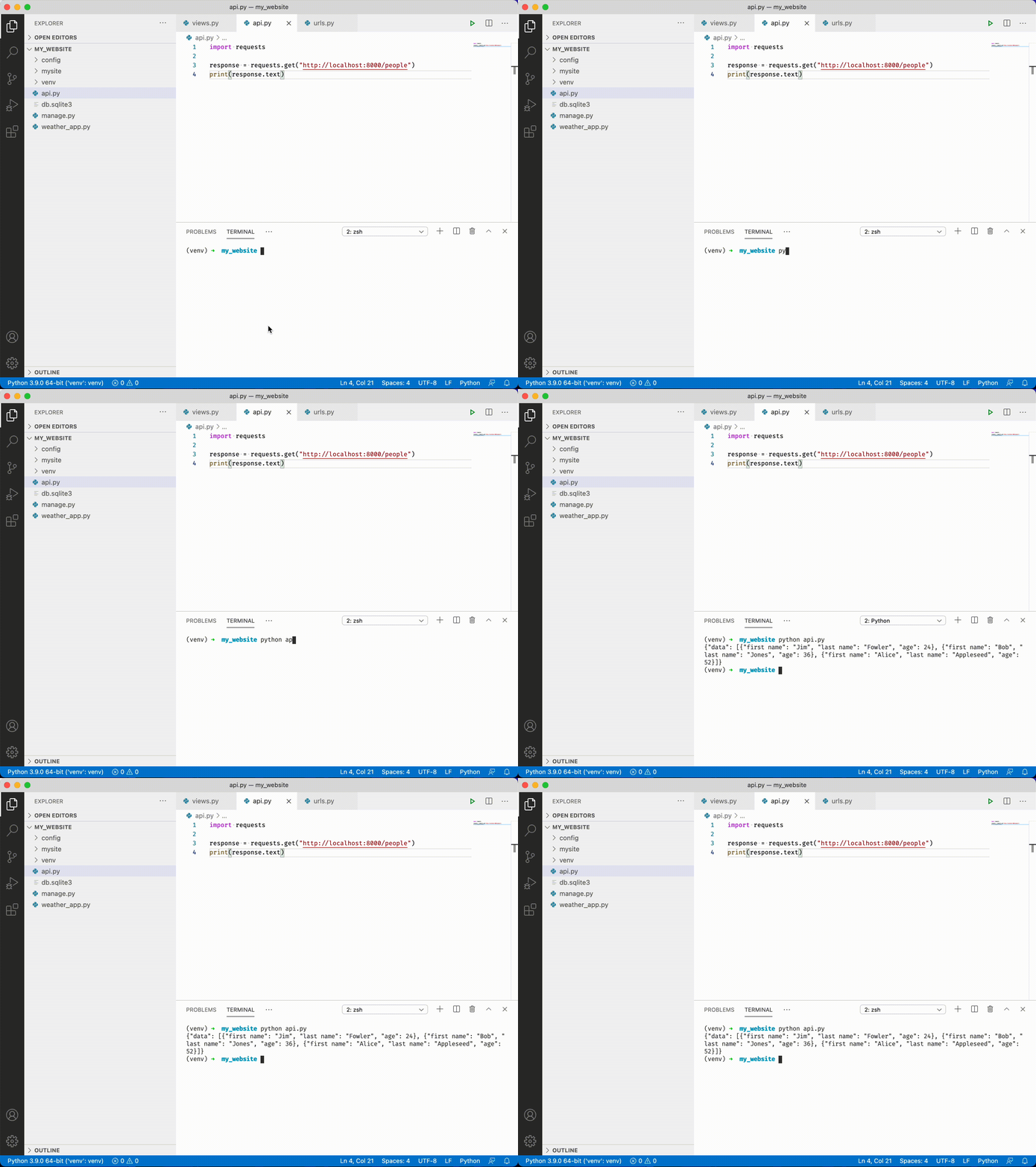
-
Now we want to save our api response as python data. Let's add the following to
api.pyimport requests import json response = requests.get("http://localhost:8000/people") people = response.json()["data"] for person in people: if person["age"] > 30: print(f"{person['first name']} {person['last name']} is over 30.") -
Type
python api.pyand press ++enter++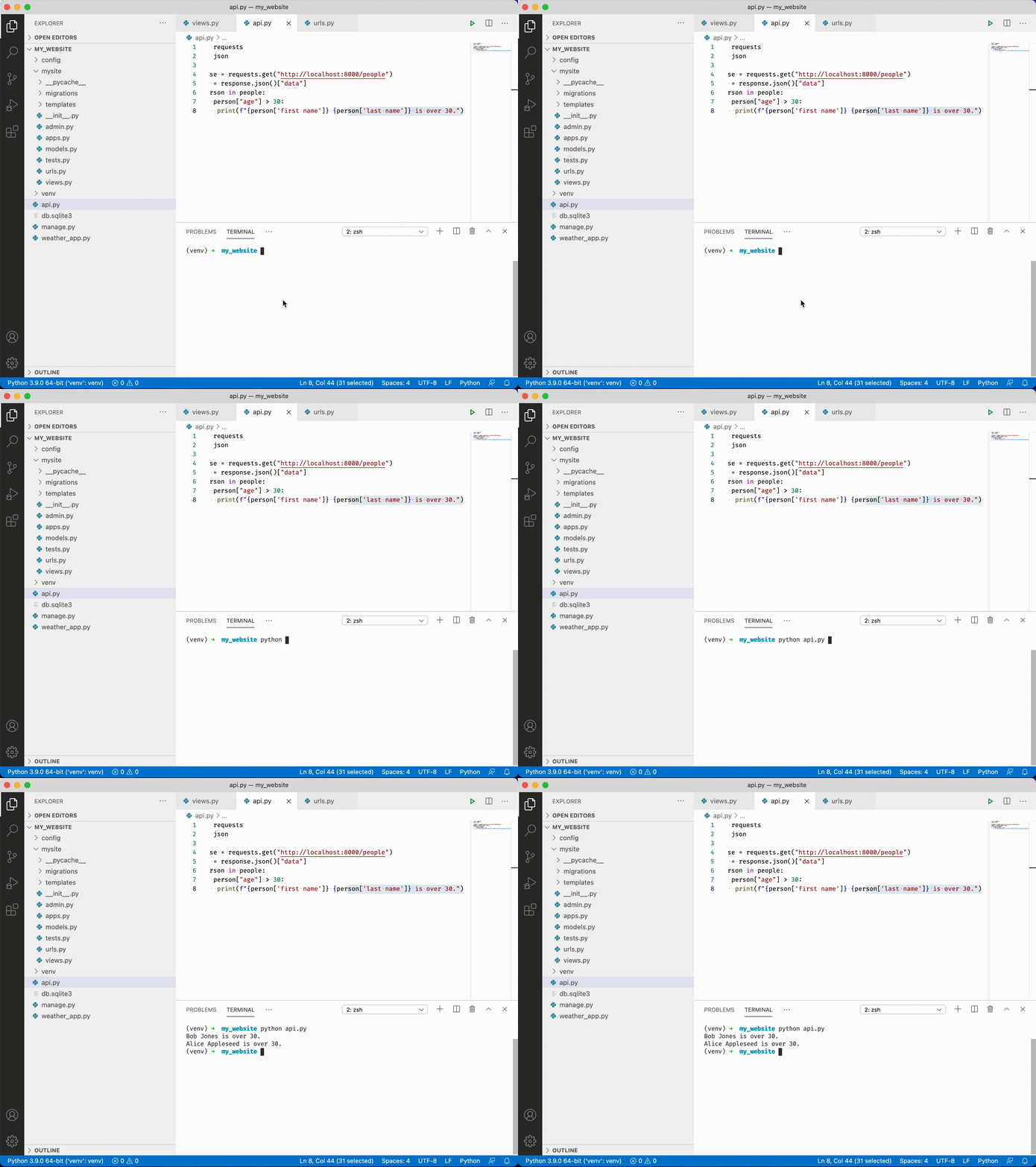
You've just done one of the most important things in Python programming: used the results of an api call to do something!
-
Click the terminal dropdown and switch back to the terminal running your web server:
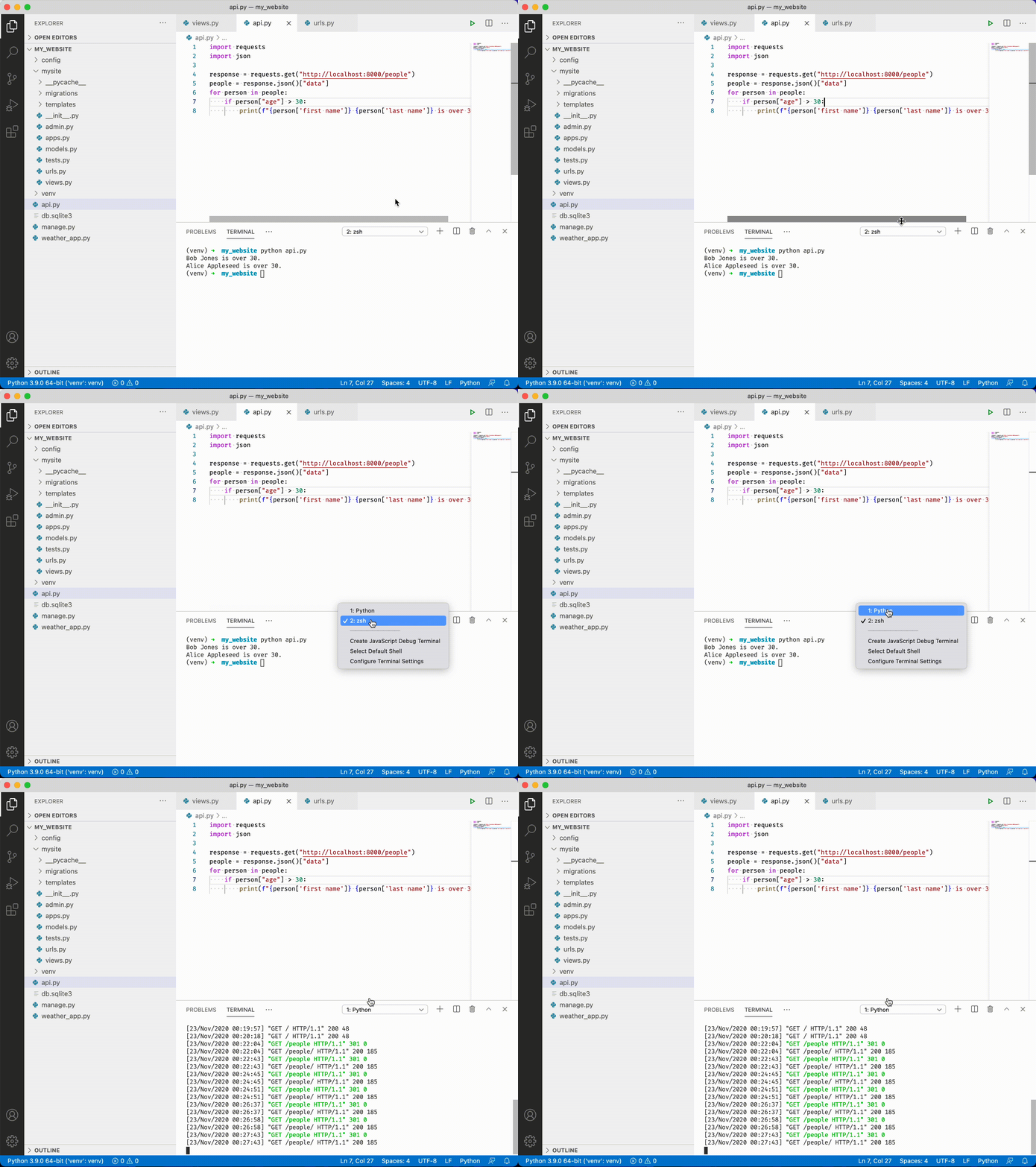
-
Stop your server with ++ctrl+c++
-
Type
python api.pyand press ++enter++. Notice how you get an error that says "failed to establish new connection"? If requests can't connect to the web server you'll see this error. Remember it!


