
14 KiB
Day 5
"import"
In our last section we're going to talk about organization. Not a glamorous topic, but an important one nonetheless!
What an import actually is
You've already done this quite a bit - but here's a recap
- Type
pythonin the terminal and press ++enter++ to start the interpretor - Type
requests.get("https://google.com")and press ++enter++ - You should see
NameError: name 'requests' is not definedprinted to the terminal - Type
import requestsand press ++enter++ - Now type
requests.get("https://google.com")again and press ++enter++ - You should see
<Response [200]>printed to the terminal. You've just imported a module. - Type
exit()and press ++enter++ to exit
"importing" alerts python that you want to use some code that isn't in the file you're currently working in. But where is "requests"? Remember that "venv" folder we made? Look inside it:

Requests is just a bit of python code that lives in our venv. In fact, we can rename it and import it as something completely different (though this isn't recommended). Give this a try:
- Rename the requests folder in your venv to "somethingelse"
- Type
pythonin the terminal and press ++enter++ to open the interpretor - Type
import somethingelseand press ++enter++ - Type
somethingelse.get("https://google.com")and press ++enter++. You should see<Response [200]>printed to the terminal. Your rename worked! You just changed the name python references when we import the code. - Type
exit()and press ++enter++ to exit. - Rename "somethingelse" back to " for now.
Using "as" to rename imports
Sometimes we don't want to use the name of the package in our code. It might conflict with something we already named, it might be really long to type, or it might just be poorly named. Fortunately, we don't have to rename the folder to change the name.
- Type
pythonin the terminal and press ++enter++ to open the interpretor - Type
import requests as somethingelseand press enter - Type
somethingelse.get("https://google.com")and press ++enter++. You should see<Response [200]>printed to the terminal. You can useasto rename modules. - Type
import requestsand press ++enter++ - Type
requests.get("https://google.com")and press ++enter++. You should see<Response [200]>printed to the terminal. You can import requests like normal alongside your custom name. - Type
exit()and press ++enter++ to exit
dots
When you type requests.get() have you considered what the . means? Anytime you see a . it means you can split that thing apart. Example:
requests . get
└──────┘ ^ └─┘
are two separate things.
requests is a "package". A package can container other packages, classes, functions, variables, etc.
get is a "function". That means it was created like this:
def get(url, ...):
    *code here*
Check around line 64 in venv/lib/python3/site-packages/requests/api.py to see the actual function.
Let's actually make use of that dot.
- Type
pythonin the terminal and press ++enter++ - Type
from requests import getand press ++enter++ - Type
requests.get("https://google.com")and press ++enter++ - You should see
NameError: name 'requests' is not definedprinted to the terminal - Type
get("https://google.com")and press ++enter++. You should see<Response [200]>printed to the terminal. You just split thegetfunction from therequestspackage. You don't need to typerequests.to use thegetfunction. - Type
post("https://google.com")and press ++enter++. You should seeNameError: name 'post' is not definedprinted to the terminal.postis a valid function, let's import it. - Type
from requests import *and press ++enter++. We just used a "wildcard" import. It import everything into our interpretor from the package.. - Type
post("https://google.com")and press ++enter++. You should see<Response [405]>printed to the terminal. You didn't need tofrom requests import postto use thepostfunction. You imported it when you used the*symbol. - Type
exit()and press ++enter++ to exit.
Breaking apart our terrible weather app
What better way to demonstrate the power of imports than with our terrible weather app?
-
Type
python weather_app.pyin your terminal and press ++enter++. You should run through your terrible weather app just like on day 2 -
Open "weather_app.py" in VSCode
-
Notice the
import randomat the top, you should know what's happening here. -
Create a new file called
weather_config.pyin the root directory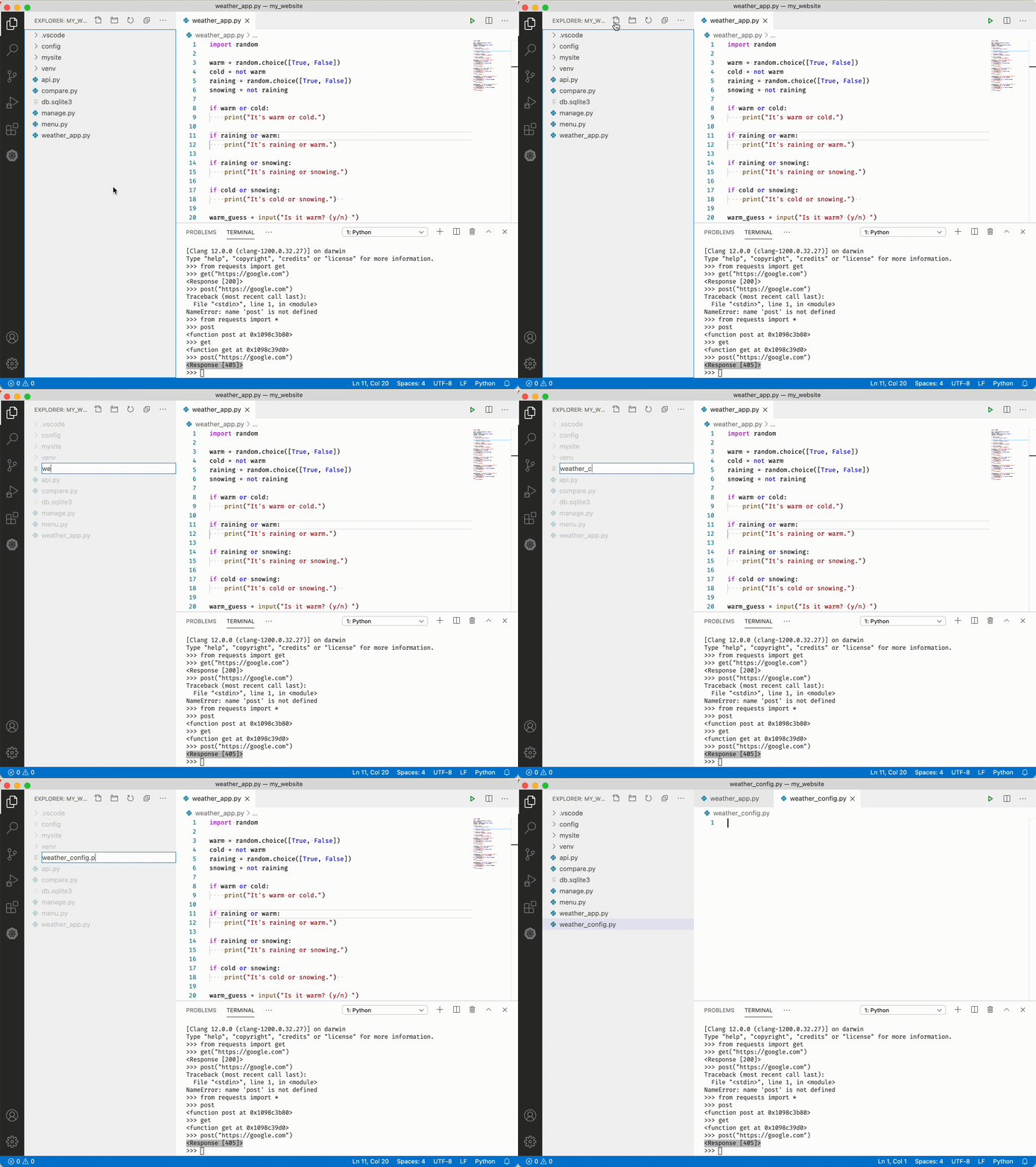
-
Copy the 4 variables from the top of "weather_app.py" into "weather_config.py"
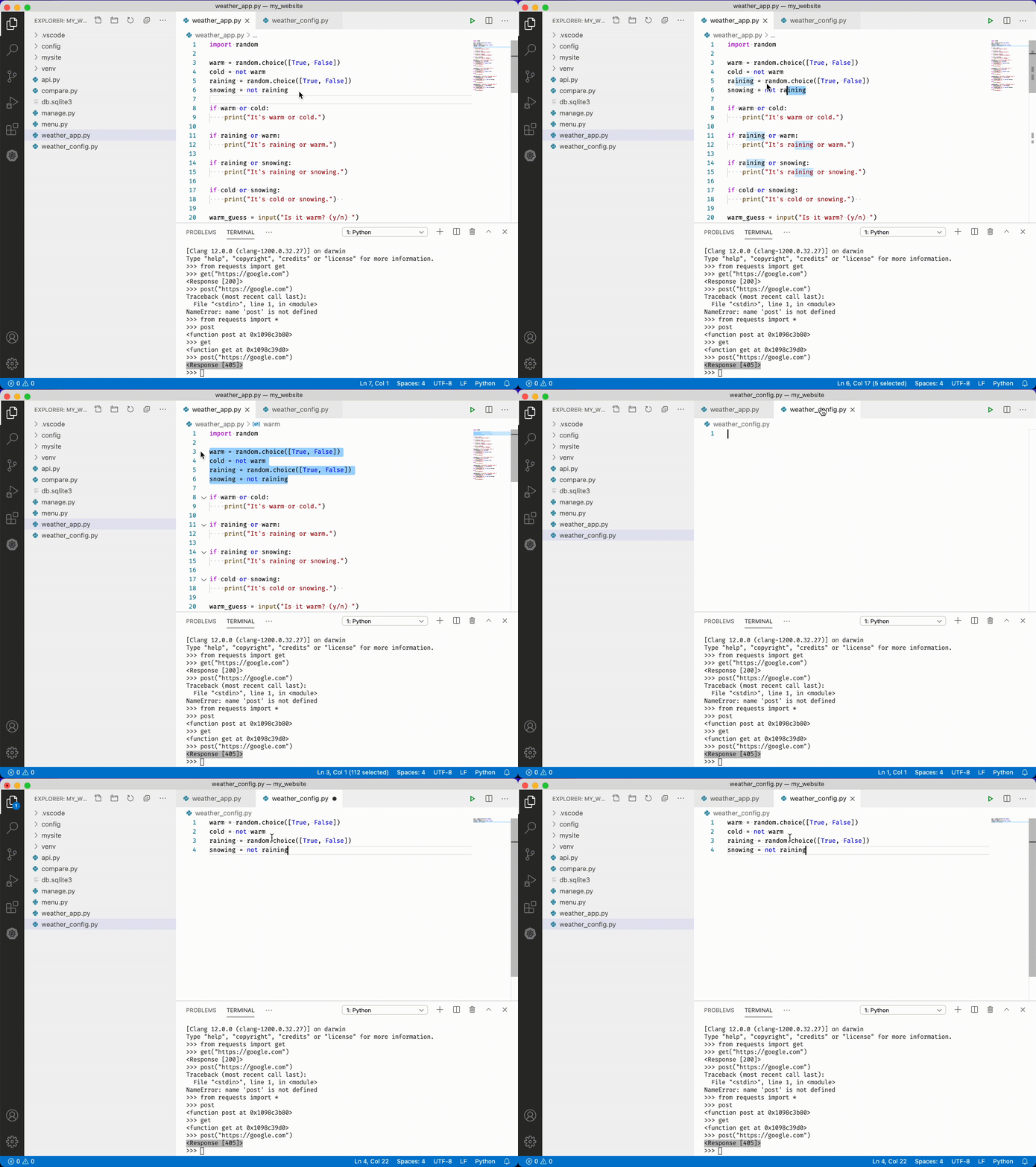
-
Save with ++ctrl+s++
-
Delete those variables from "weather_app.py".
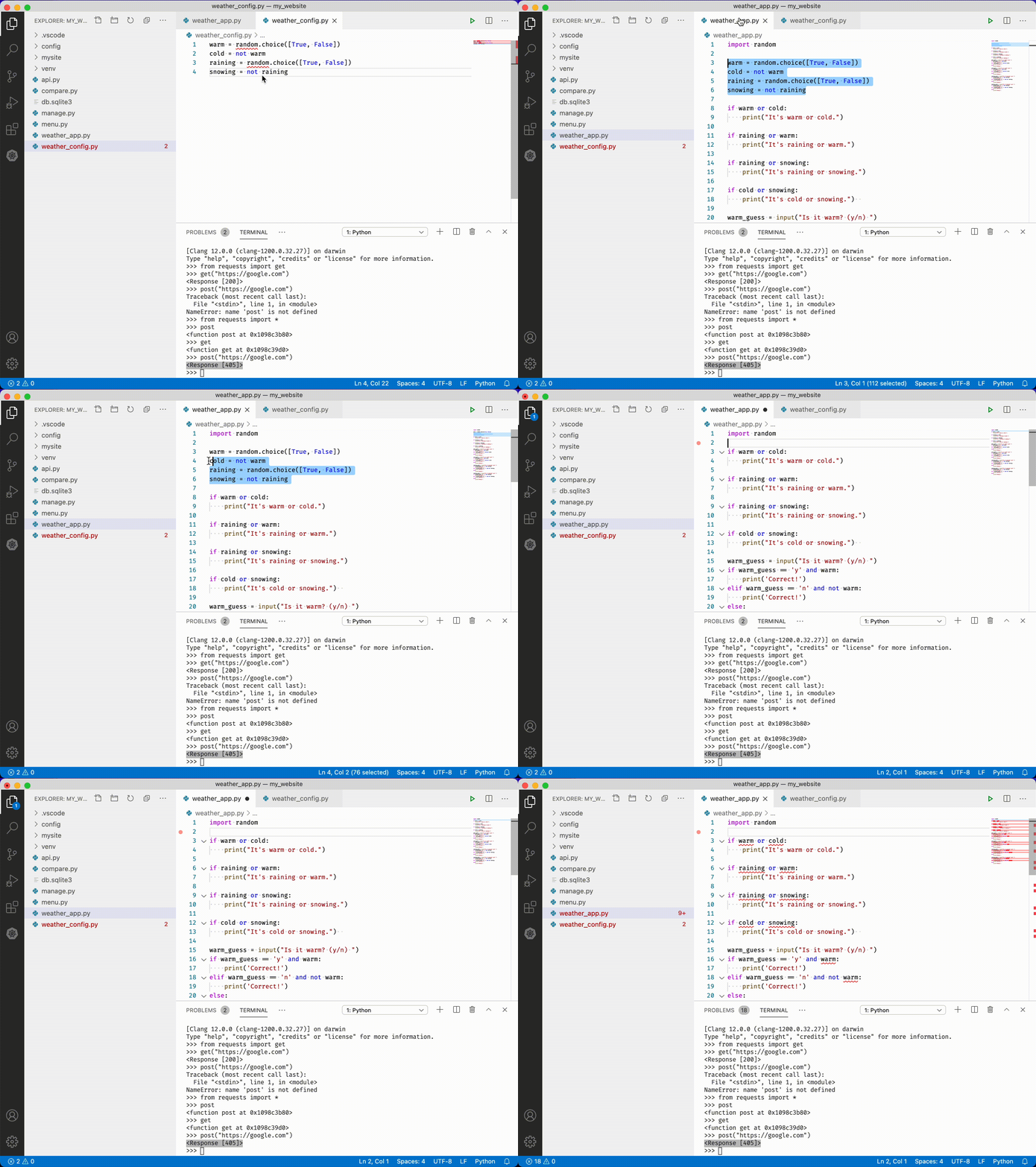
-
Save with ++ctrl+s++
-
Delete
import randomfrom the top of "weather_app.py" -
Save with ++ctrl+s++
-
Add
import randomto the top of "weather_config.py"import random warm = random.choice([True, False]) cold = not warm raining = random.choice([True, False]) snowing = not raining -
Save with ++ctrl+s++
-
In your terminal type
python weather_app.pyand press ++enter++. You should seeNameError: name 'warm' is not definedprint to the terminal. Butwarmis in our weather_config.py! We need to import it! -
At the top of "weather_app.py" add
from weather_config import warmfrom weather_config import warm if warm or cold: print("It's warm or cold.") if raining or warm: -
Save with ++ctrl+s++
-
Type
python weather_app.pyagain and press ++enter++. This time you should seeNameError: name 'cold' is not definedprinted to your terminal. Ah, we imported warm but none of the other variables. We need to import those as well. We could type everything out one by one, but instead: -
At the top of "weather_app.py" change
from weather_config import warmtofrom weather_config import * -
Save with ++ctrl+s++
-
Now type
python weather_app.pyagain and press ++enter++. Your weather app works as normal!


Breaking it even further apart
We're going to turn each "chunk" of code in our weather app into a function that we can move to another file.
-
Starting at line 3, add the following (indent the if statements!):
def print_clues():
--->if warm or cold:
--->--->print("It's warm or cold.")

--->if raining or warm:
--->--->print("It's raining or warm.")

--->if raining or snowing:
--->--->print("It's raining or snowing.")

--->if cold or snowing:
--->--->print("It's cold or snowing.")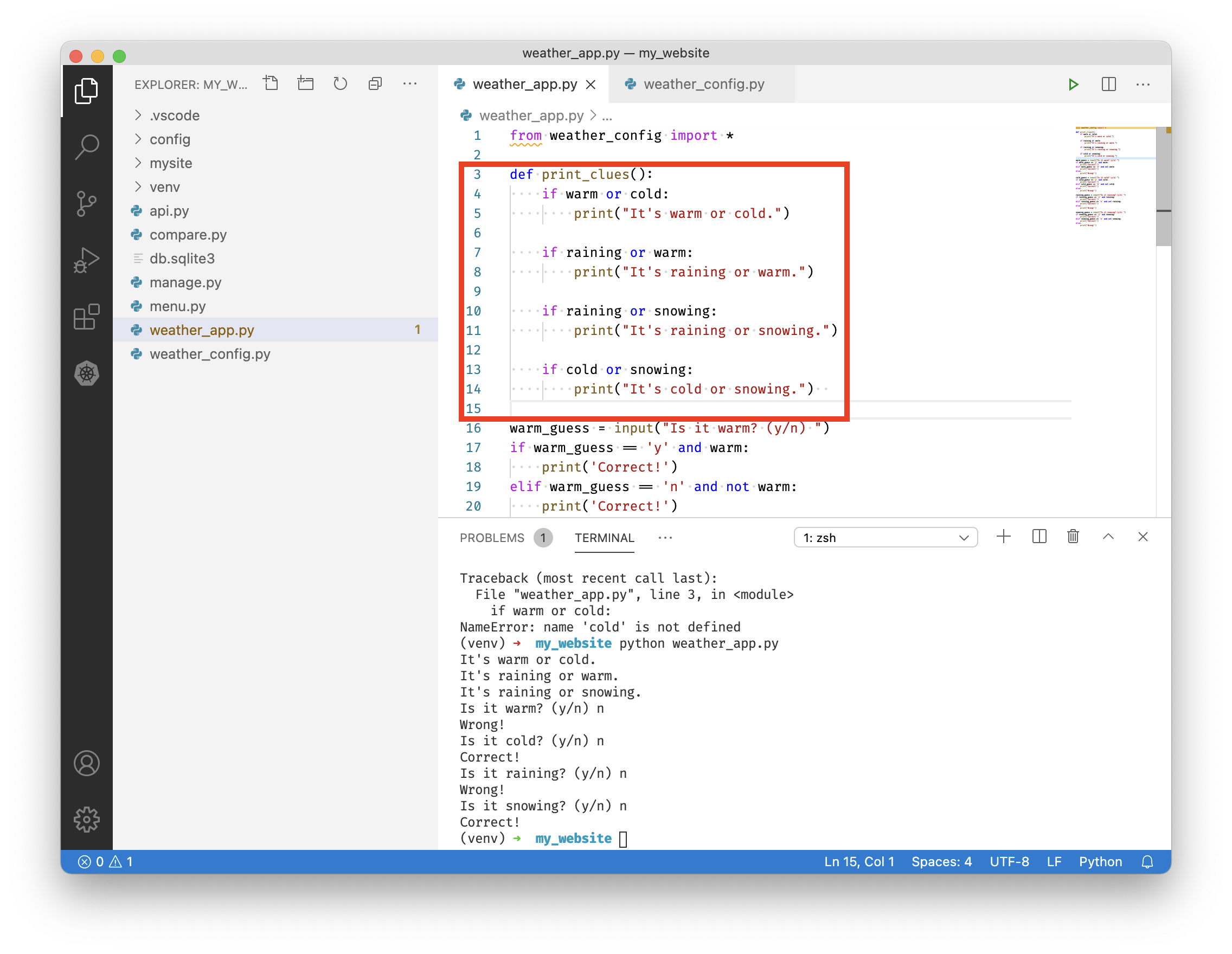
-
Now do the same to our "guess chunks" like so:
def check_guesses():
--->warm_guess = input("Is it warm? (y/n) ")
--->if warm_guess == 'y' and warm:
--->--->print('Correct!')
--->elif warm_guess == 'n' and not warm:
--->--->print('Correct!')
--->else:
--->--->print('Wrong!')

--->cold_guess = input("Is it cold? (y/n) ")
--->if cold_guess == 'y' and cold:
--->--->print('Correct!')
--->elif cold_guess == 'n' and not cold:
--->--->print('Correct!')
--->else:
--->--->print('Wrong!')

--->raining_guess = input("Is it raining? (y/n) ")
--->if raining_guess == 'y' and raining:
--->--->print('Correct!')
--->elif raining_guess == 'n' and not raining:
--->--->print('Correct!')
--->else:
--->--->print('Wrong!')

--->snowing_guess = input("Is it snowing? (y/n) ")
--->if snowing_guess == 'y' and snowing:
--->--->print('Correct!')
--->elif snowing_guess == 'n' and not snowing:
--->--->print('Correct!')
--->else:
--->--->print('Wrong!')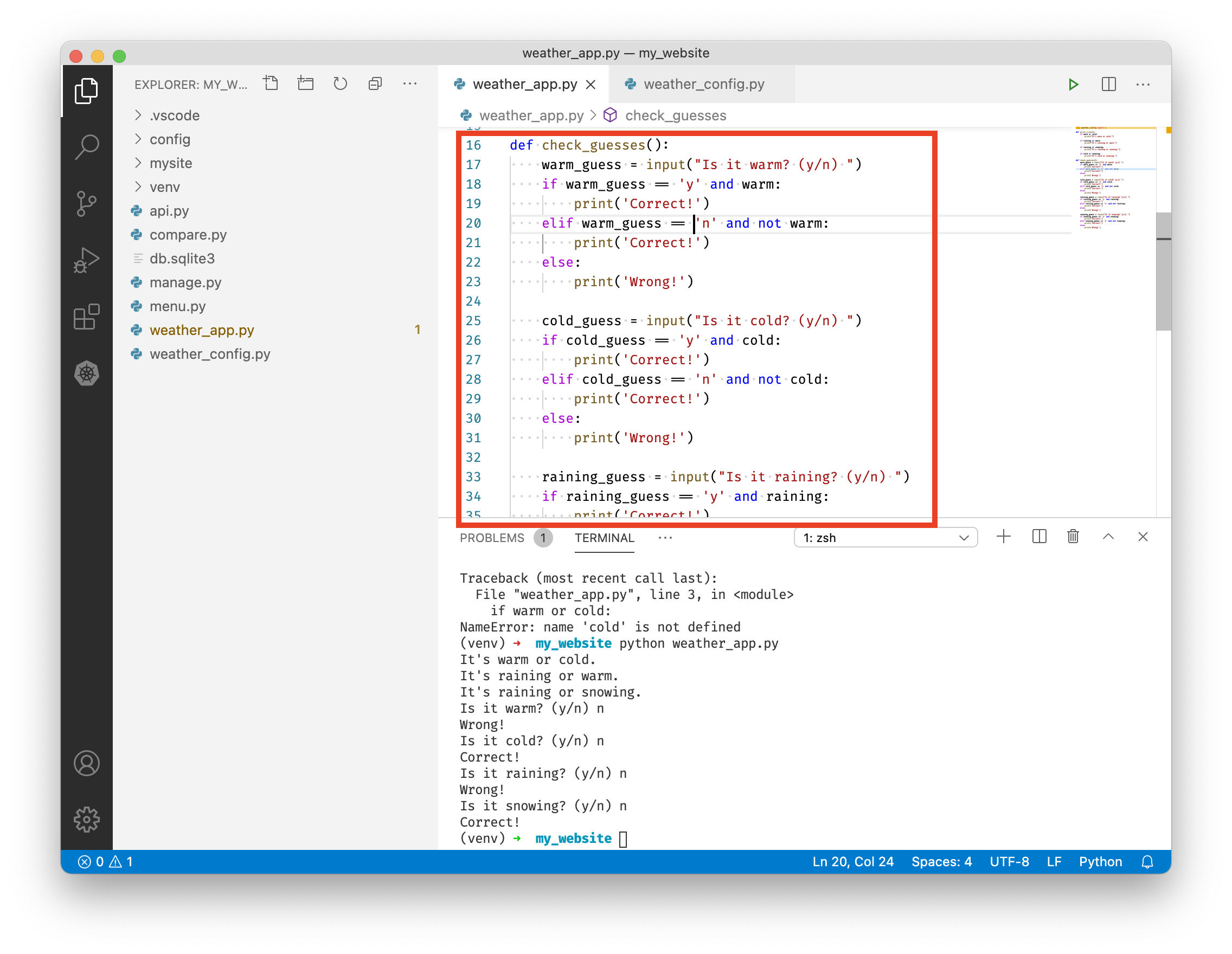
-
Save with ++ctrl+s++
-
Type
python weather_app.pyin the terminal and press ++enter++. Nothing happens! -
Create a new file called "weather_run.py" in your root directory.
-
Add the following to "weather_run.py"
from weather_app import print_clues, check_guesses print_clues() check_guesses() -
Save with ++ctrl+s++
-
In your terminal type
python weather_run.pyand press ++enter++. Your weather app works again! You've broken it out into a bunch of modules. -
Type
pythonin your terminal and press ++enter++ to open the python interpretor -
Type
import weather_runand press ++enter++. Your weather app should run in the terminal -
Press ++ctrl+c++ to stop your app from running
-
Type
exit()to exit -
We don't want your app to run when we import it. Let's add a check to "weather_run.py" to make sure that doesn't happen. Modify "weather_run.py" like so:
from weather_app import print_clues, check_guesses

if __name__ == "__main__":
--->print_clues()
--->check_guesses()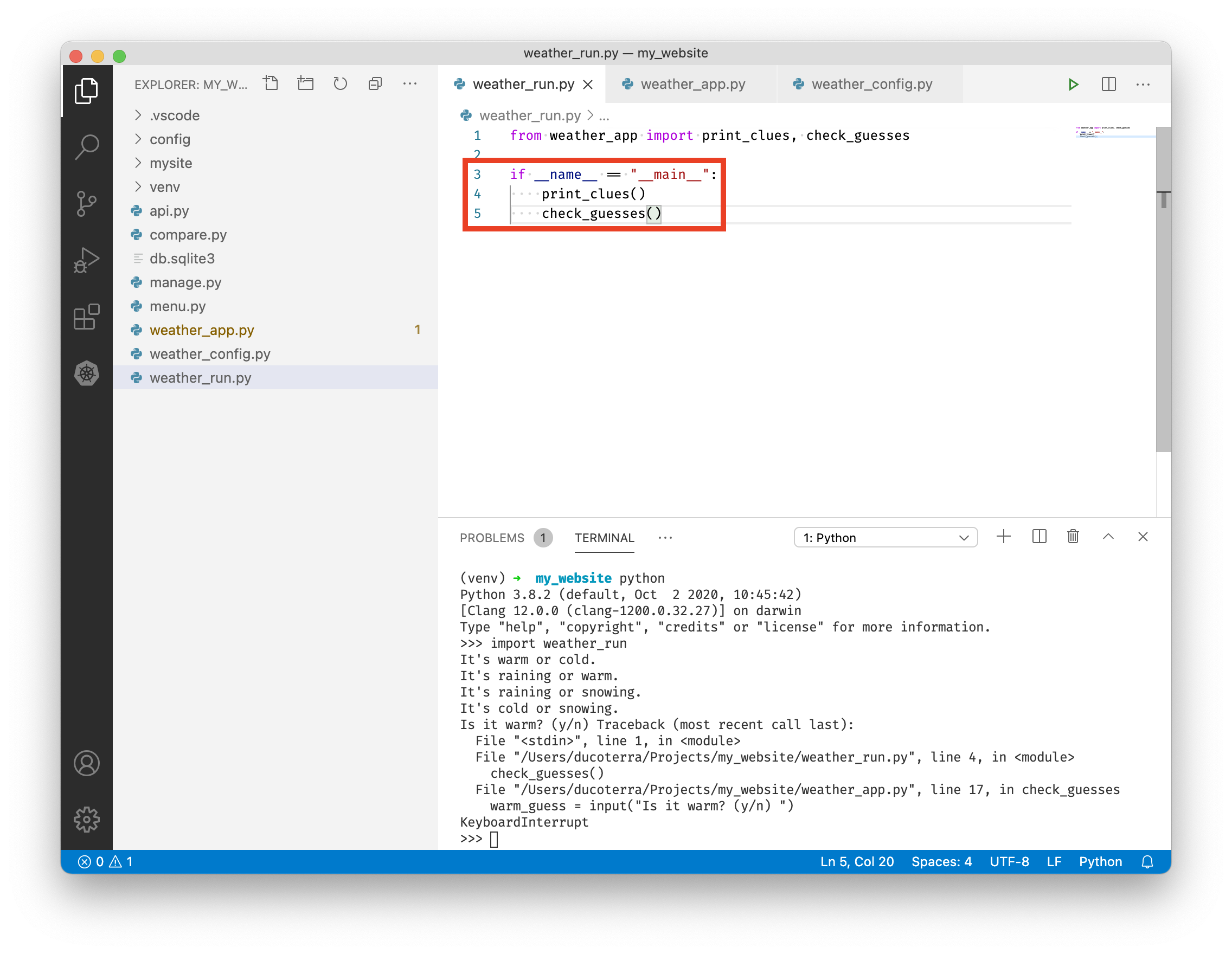
-
Type
pythonin your terminal and press ++enter++ to open the python interpretor -
Type
import weather_runand press ++enter++. This time nothing should happen! That's good, we want to import our app without it running immediately. Just like importingrequestsdoesn't immediately run thegetfunction, we don't want anything to run on import of our programs. -
Type
exit()to exit


Importing our menu
We can use imports to make our lives a lot easier. Let's use our menu as an example.
- Open "menu.py" in VSCode
- Type
pythonin your terminal and press ++enter++ to open the python interpretor - Type
import menuand press enter. You've just imported all our functions from "menu.py". Notice how the menu doesn't run though, that's because we added aif __name__ == "__main__"block! We were thinking ahead. - Open a new terminal windows by clicking the plus icon
- Type
python manage.py runserverand press ++enter++ to start your server - Use the dropdown to switch back to your other terminal window
- Type
menu.update_people(None)and press ++enter++. You should see people print to the terminal. But wait, that's not what update() was supposed to do - and why did we have to specify(None)?
If we want our menu functions to be useful outside our menu app we have some work to do:
-
First, I shouldn't have to pass a default value like
(None)to our functions. Editlist_peoplelike so:def list_people(future=None, people=None): if future is not None and future.done(): people = future.result() future = None print(people) return (future, people)This specifies that unless a "future" or "people" is provided they are "None" by default.
-
Let's do that to our remaining functions:
def update_people(people=None): try: response = requests.get("http://localhost:8000/slow") people = response.json()["data"] print("successfully updated people.") except requests.exceptions.ConnectionError: print("Server is not running. Failed to update.") return people def clear_people(people=None): people = None return people -
Now let's fix our update function.
update_peopleis supposed to run in the background, but it just returned the list of people. Let's create a "decorator". -
At the top of
menu.pyadd the following:import requests import json from concurrent.futures import ThreadPoolExecutor def run_in_background(function): def wrapper(*args, **kwargs): return ThreadPoolExecutor().submit(function, *args, **kwargs) return wrapper def list_people(future, people): if future is not None and future.done(): people = future.result() future = None -
Now add the following above
update_people():@run_in_background def update_people(people): try: response = requests.get("http://localhost:8000/slow") people = response.json()["data"] print("successfully updated people.") except requests.exceptions.ConnectionError: print("Server is not running. Failed to update.") return people -
Remove the
ThreadPoolExecutor()part at line 40:if __name__ == "__main__": people = None future = None choices = ["list", "update", "clear", "exit"] while True: choice = input(f"Please choose an option [{', '.join(choices)}]: ") if choice == "list": future, people = list_people(future, people) elif choice == "update": future = update_people(people) elif choice == "clear": people = clear_people(people) elif choice == "exit": break else: print("Invalid choice. Please try again.") -
Let's make sure we didn't break our menu. Type
python menu.pyand press ++enter++ -
Type update, list, clear, and exit to test your program.
-
Type
pythonand press ++enter++ to open the interpretor -
Type
import menuand press ++enter++ -
Type
people = menu.list_people()and press ++enter++. You should seeNoneprint. -
Now type
update = menu.update_people()and press ++enter++. Nothing should print. -
Wait a moment for "successfully updated people." to print to the terminal
-
Type
people = menu.list_people(update). Your people should list! You successfully turned your menu into an importable package! -
Type
exit()to exit.
Using our imported menu
For our last trick we'll use our menu functions in a new program.
-
Create a new file named "print_people.py"
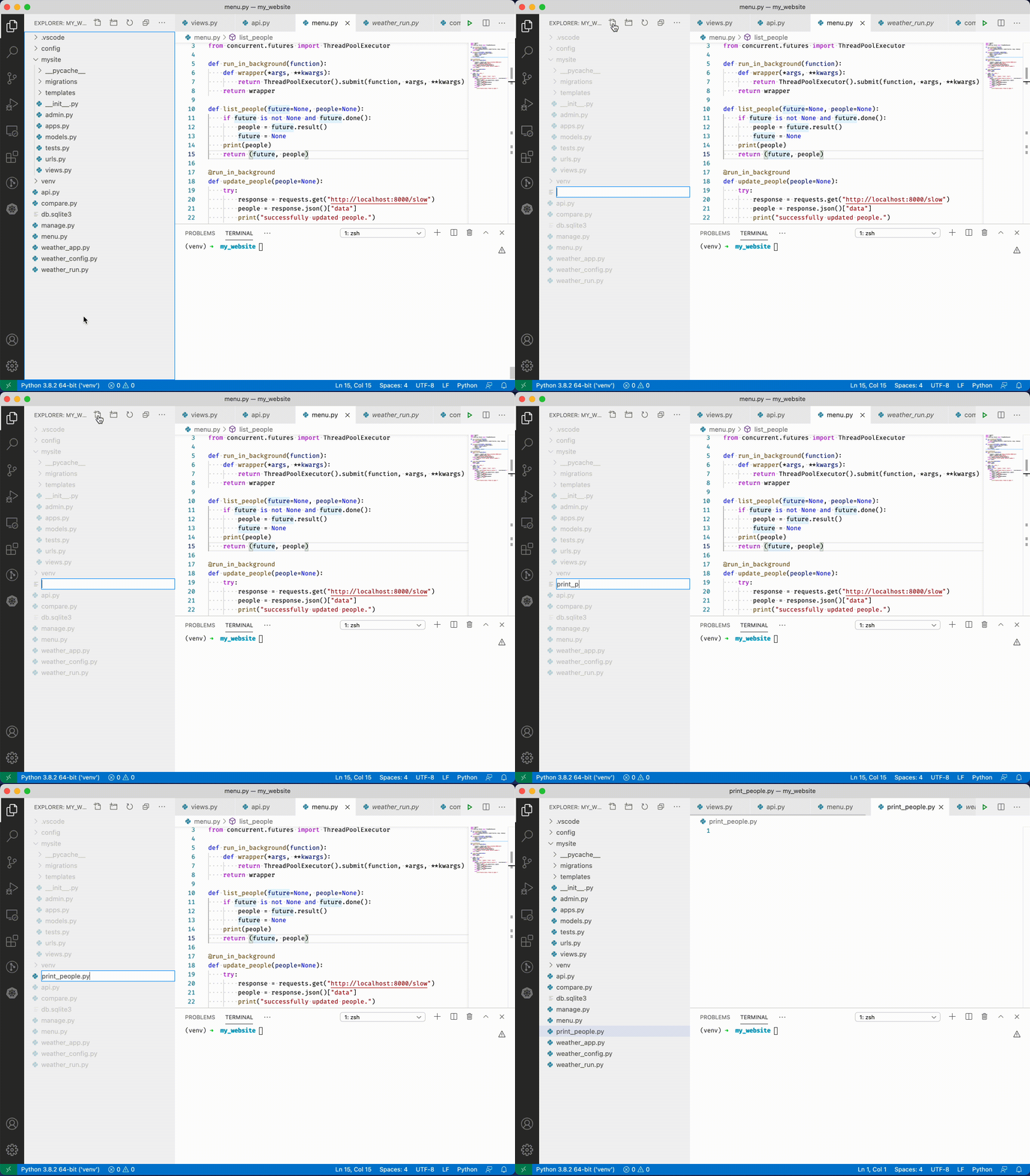
-
Add the following:
from menu import update_people, list_people from concurrent.futures import wait update = update_people() wait([update]) list_people(update) -
Type
python print_people.pyand press ++enter++ to run your program. You should see your people print after a while.

Congratulations! You've just imported a program you wrote to communciate with an API and used it to do something automatically.